















































JoomlaAruba.com · Practical guide
Check your Joomla version before you change anything

Start with the site you actually manage
Before searching for an update package, establish which installation you are looking at. A business may have a public site, a training copy and an abandoned staging installation under similar names. Record the exact public address and the administrator address in your private maintenance notes. Confirm you have authorized access. Do not infer the installed Joomla version from a copyright date, template appearance or an old invoice; those describe different things.
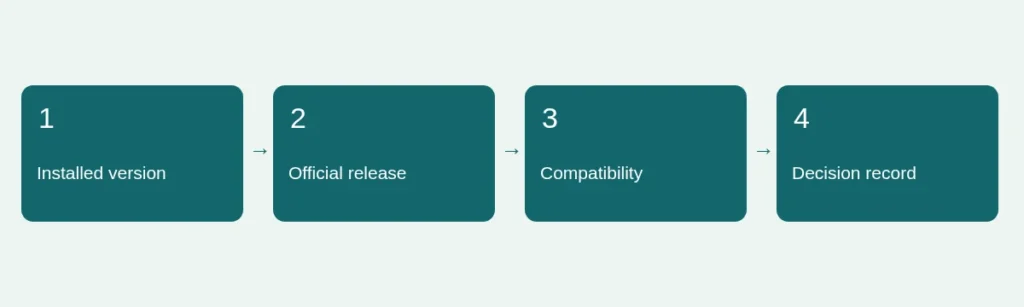
Make a short, private version record
Sign in to the authorized Joomla administrator and inspect its displayed version and System Information. Labels can vary between releases, so use the matching official guide if your screen differs. Record the full installed version, the date you checked, the template name, PHP version and database family/version. Keep server paths, account identifiers and configuration files out of public support posts. A useful record is precise enough that another authorized maintainer can identify the installation without needing its passwords.
Separate release status from compatibility
The official downloads site identifies available Joomla releases. The technical manual supplies requirements, but you must select the documentation version that matches your intended target. During our review, different official pages used different current/upcoming labels. That is a reason to check the actual release announcement and package, not to guess from a search snippet. Avoid treating a planned roadmap date as proof that software has shipped. Our resource pages link to those primary sources rather than freezing a patch number into every guide.
Compare the entire environment
A core release can support your PHP version while a third-party extension does not. Make a dependency list covering the active template, editor, forms, search, languages and any integration that handles important transactions. Record each vendor’s stated target-version support and the date you verified it. Treat an unanswered compatibility question as a task to resolve, not a green light. Hosting requirements also differ between major Joomla versions; changing PHP is not an isolated cosmetic setting.
Turn uncertainty into a decision
Classify the next action: routine patch review, minor-release compatibility check, or a major-version migration plan. For an old installation, first read the official migration route rather than uploading the newest full-install package onto production. Arrange a restorable backup and a separate test copy before an impactful change. A test copy must not accidentally send contact messages, payment notifications or newsletters to real people. Document how those services are isolated.
Know when the check is finished
Your version record is complete when you can name the current installation, intended target, environment requirements, unresolved dependencies and recovery owner. That does not mean an update has passed. After a change, record the resulting version and exercise real visitor tasks, not only the administrator dashboard. Keep the before-and-after notes together. Continue with our maintenance guidance and migration considerations before scheduling the work.
Sources and scope
Reviewed 4 November 2026. Independent planning guidance, not an official Joomla publication or a service guarantee. Verify the documentation for your own installed release before making changes.