














































JoomlaAruba.com · Practical guide
Your first Joomla page: content, categories and menus

Begin with one visitor question
Choose one useful page before choosing a template or extension. A small organization might start with how to find its office; a community project might explain how to attend a meeting. Write the intended reader, the question and the next action on a single line. This keeps your first publishing exercise concrete. You are testing whether someone can find and understand information, not whether you can fill every available module position.
Prepare a safe learning installation
Use an installation you are authorized to edit and follow the official getting-started guide for its Joomla release. If this is an existing live website, inspect and preserve its current content rather than running an installation wizard over it. Keep administrator credentials private and use an individual account with only the access needed. Before changing navigation, note the current menu and which page is the default home destination so you can restore the visitor journey.
Create a category with a purpose
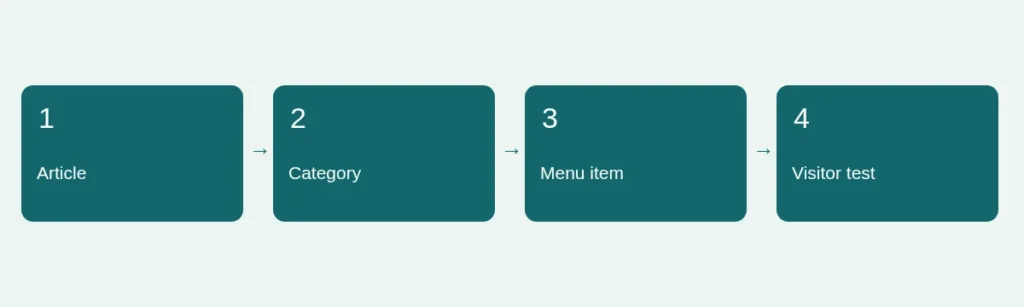
Categories organize related articles; menu items provide navigation into content. These are connected ideas but not interchangeable records. Choose a plain category name that describes the content, such as Community updates or Visitor information. Avoid a deeply nested category tree while you are still learning. Ask whether another editor could place the next article without needing you to explain the filing system. The official guide covers the precise controls for creating categories and articles.
Write the article as content first
Draft a descriptive title, a short introduction and a few meaningful subheadings. Use real text instead of putting essential instructions inside an image. Add an image only if you have permission and it helps explain the topic. Describe its relevant purpose in alternative text; do not repeat a long caption word for word. Review links for descriptive wording, especially if several would otherwise say click here. Save the article in the intended category and check its publication and access settings.
Give readers a route to the page
Create the appropriate menu item using the official instructions for your version. Point it at the article or relevant category view, choose a concise label and inspect the result on the public site. Do not assume that a saved article automatically appears in the main menu. Likewise, a visible menu label is not proof that the destination is available to a logged-out visitor. Check both the menu item and article access levels when a colleague sees a page that a visitor cannot.
Test the whole publishing journey
Open a private browser window, navigate from the homepage and read the page at phone width. Check the title, heading order, links, image, menu label and next action. Use the keyboard to move through the navigation. If the page is hard to find, fix the route before adding decorative modules. Then repeat the exercise with a second related article and decide whether a category view would serve readers better. Our resource map links to the official learning sequence; Getting started provides a broader planning checklist.
Sources and scope
Reviewed 4 November 2026. Independent planning guidance, not an official Joomla publication or a service guarantee. Verify the documentation for your own installed release before making changes.